How to Get Your Kindle to Read to You: Steps for Every Device

The short answer
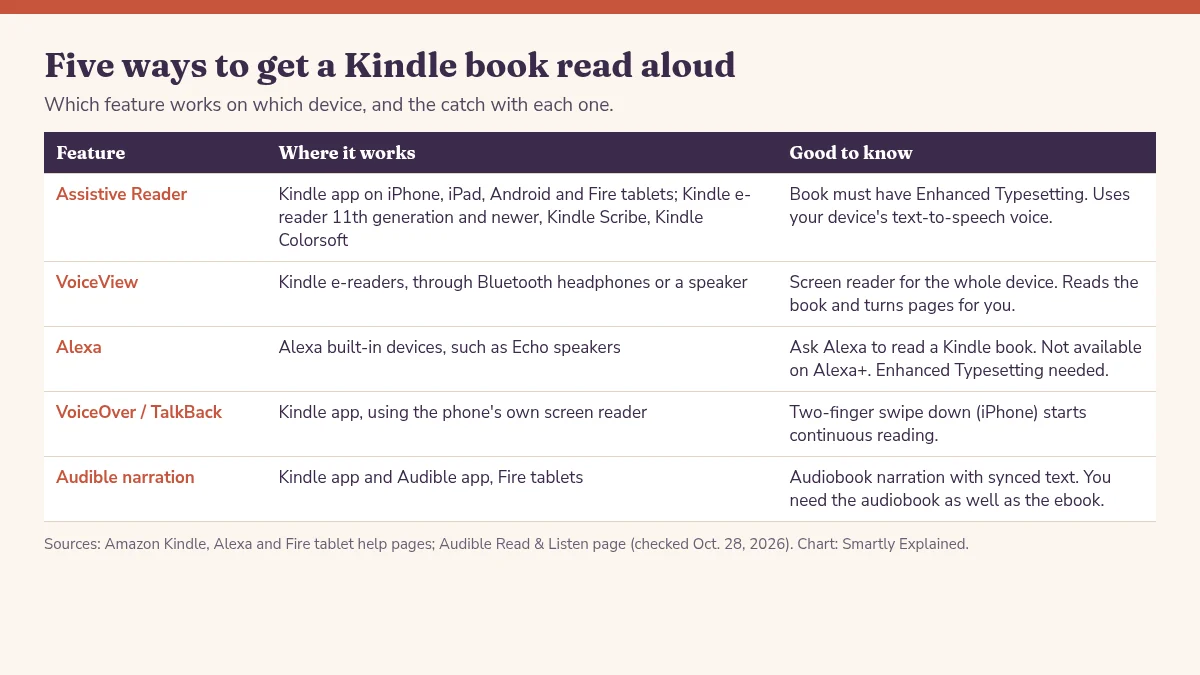
To get a Kindle book read aloud, open the book, tap the top center of the screen, tap Aa, choose More, and turn on Assistive Reader. That works in the Kindle app on iPhone, iPad, Android and Fire tablets, and on newer Kindle e-readers. On an older Kindle e-reader, use VoiceView with Bluetooth headphones or a speaker instead. Either way, the book must support a feature called Enhanced Typesetting, which is the most common reason a title will not read.
In this explainer
In the Kindle app (phone, tablet, Fire)
Amazon's steps for the free app on iOS, Android and Fire tablets (Assistive Reader in Kindle apps):
- Open the book.
- Tap the top center of the screen, then the Aa reading settings menu.
- Tap More, then turn on Assistive Reader.
- Tap the screen to show the player. You can change the reading speed or rewind 30 seconds.
To start from a certain spot instead of the top of the page, long-press a word and choose Play. The voice comes from your phone or tablet's own text-to-speech engine, so the book has to be in a language that engine supports. Assistive Reader pauses when you open the menu or add a highlight or note, and it stays on until you turn it off.
On a Kindle e-reader
Newer models. Assistive Reader is built into the Kindle E-Reader 11th Generation and newer, Kindle Scribe and Kindle Colorsoft (Assistive Reader on Kindle). The steps match the app: tap the top center, Aa, More, then Assistive Reader. It reads books in English, Spanish, French, German and Italian, and underlines the words as they are read.
Older models, or if you want the whole screen read. VoiceView is Kindle's screen reader, and it plays through a Bluetooth audio device such as headphones or a speaker (VoiceView over Bluetooth). It works in English, French, German, Italian, Portuguese and Spanish. To start it:
- 11th Generation and newer: put your headphones or speaker in pairing mode, press the Kindle's power button three times within two seconds, and when you hear audio (within two minutes), hold two fingers spaced apart on the screen.
- Earlier models: put the audio device in pairing mode, hold the power button for nine seconds, then press two fingers spaced apart on the screen for one second. When you hear audio, hold two fingers on the screen again to confirm.
Not every older Kindle can do this. Amazon says only devices released during or after 2016 support Bluetooth (pairing a Bluetooth audio device). Once VoiceView is on, it starts reading when you open a book and turns the pages by itself. Tap the screen with two fingers to pause, and swipe down then right in an L shape to start reading again (VoiceView gestures). To turn it off, open Quick Actions, choose VoiceView Screen Reader, and select Off.
With Alexa
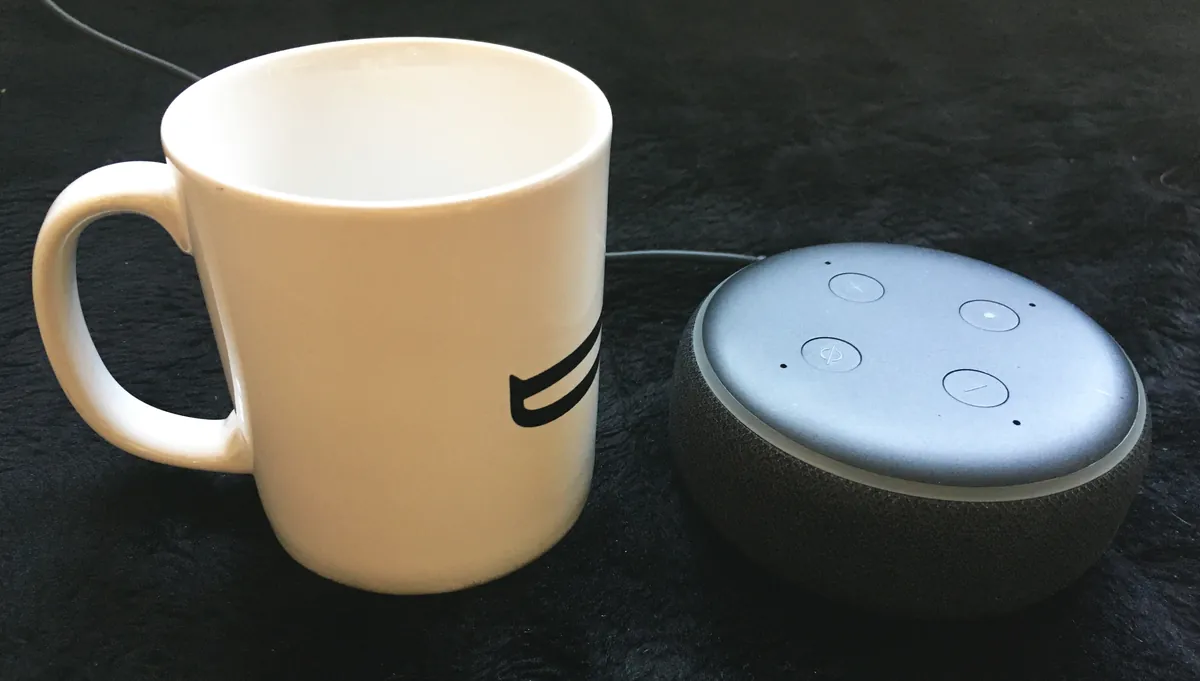
Ask Alexa to read a book, or turn on Kindle Assistive Reader in the Alexa app's accessibility settings (Use Alexa to read your Kindle books). While it reads, you can ask Alexa to pause, skip by chapter, speed up or slow down, or set a timer to stop reading, which helps at bedtime. Amazon notes this feature is not available on Alexa+. To see which of your books it can read, say "Show my Kindle books" (which books Alexa can read).
With your phone's screen reader
The Kindle app also works with the screen readers built into phones. On an iPhone, turn on VoiceOver under Settings, Accessibility, then swipe down with two fingers in a book to read continuously with automatic page turns (VoiceOver with the Kindle app). On Android, turn on TalkBack under Settings, Accessibility, then open the TalkBack menu and choose "Read from focused item" (TalkBack with the Kindle app). Both are screen readers built for the whole phone, not only for books, so most people will find Assistive Reader simpler for everyday listening.
Want a human narrator instead
If you own both the Kindle ebook and the matching Audible audiobook, you can listen to the real narration and follow the highlighted text. Audible calls this Read & Listen, formerly Whispersync for Voice, and you switch it on with the Read & Listen toggle in the full-screen Audible player (Audible Read & Listen). On a Fire tablet you can download the audiobook from inside the Kindle book and press play, as long as the tablet runs Fire OS 7 or later (Fire tablet reading settings).
Listening also changes the math on finishing a book. If you are wondering how long it takes to read a 300-page book, narration speed is one more option to plan around.
Why your Kindle will not read a book
- No Enhanced Typesetting. Look the book up in the Kindle Store and check that its features list says "Enhanced Typesetting: Enabled." Assistive Reader, on the app, the e-reader and Alexa, needs it.
- Where the book came from. Amazon lists books bought from the Kindle Store, borrowed through Prime Reading or other official Kindle sources, or shared in your Family Library. Its pages do not say that other files work.
- Language. The book must be in a language your device's voice, or Alexa, supports.
- Your model. If an e-reader has no Assistive Reader option, it may be older than the 11th Generation. Try VoiceView with Bluetooth, if your model has it.
Questions readers ask
Why is Assistive Reader missing from my Kindle?
On e-readers, Amazon lists Assistive Reader for the Kindle E-Reader 11th Generation and newer, Kindle Scribe and Kindle Colorsoft. On any device, the book also needs Enhanced Typesetting, so the option will not work for every title.
Does my Kindle need headphones to read aloud?
For VoiceView on a Kindle e-reader, yes. It plays through a paired Bluetooth audio device such as headphones or a speaker. Amazon says only Kindle devices released in 2016 or later support Bluetooth.
Can Alexa read my Kindle books?
Yes, on Alexa built-in devices, through Kindle Assistive Reader. Amazon says it is not available on Alexa+, and the book must support Enhanced Typesetting and be in a language Alexa supports.
Can I make the reading voice faster or slower?
Yes. Assistive Reader's player controls let you change the reading speed and rewind 30 seconds, and you can ask Alexa to slow down or speed up.
Is there a way to hear a real narrator instead of a computer voice?
Yes, if you own both the Kindle ebook and the matching Audible audiobook. Audible's Read & Listen feature, formerly Whispersync for Voice, syncs the two so you can read along with the narration.
Sources and fact-check
- How to Use the Assistive Reader in Kindle Apps, Amazon
- How to Use the Assistive Reader on Your Kindle, Amazon
- Use VoiceView Over Bluetooth on Kindle, Amazon
- Pair a Bluetooth Audio Device with Your Kindle E-Reader, Amazon
- Guide to VoiceView Gestures on Your Kindle, Amazon
- Use VoiceOver with the Kindle App on iOS, Amazon
- Use TalkBack with the Kindle App on Android, Amazon
- Use Alexa to Read Your Kindle Books, Amazon
- Which Books Can Alexa Read with Kindle Assistive Reader?, Amazon
- Other Reading Accessibility Settings on Fire Tablet, Amazon
- Read & Listen on Audible, Audible
Rules change. Spot something out of date? Tell us.